Operation procedure: Performing secure print
- Open the file in the application, and click [File]. Then click [Print] from the menu.
- Select this product from [Select Printer] (or [Printer Name]) then click [Preferences] (or [Properties]).
- In [Output Method] on the [Basic] tab, select [Secure Print].
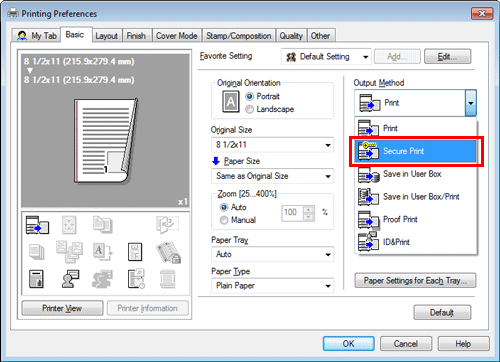
- Enter the [Secure Print ID] and [Password], then click [OK].
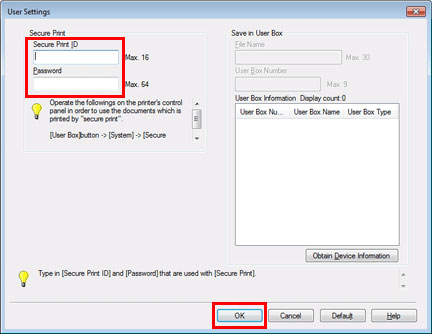
- Click [OK].
- Click [Print].
Operation procedure: Printing a secure document using the Control Panel of this machine
- Tap [User Box] and select [Secure Print] from [System].
- Enter the ID and password for the secure print document, then tap [OK].
- Select a secure print document, then tap [Print].
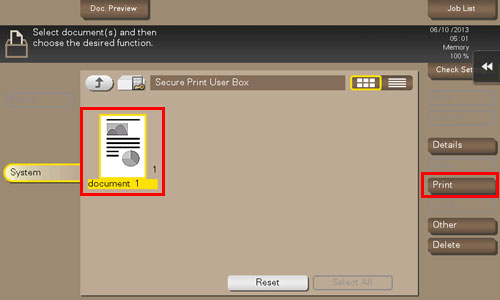
- Change the print settings as necessary, and press the Start key on the Control Panel.
- The secure print document is printed and automatically cleared from the Secure Print User Box.
Was this article helpful?
That’s Great!
Thank you for your feedback
Sorry! We couldn't be helpful
Thank you for your feedback
Feedback sent
We appreciate your effort and will try to fix the article